General
As of version 9.9 build 1202, the Assimilate Product Suite supports NVIDIA Rivermax, which provides SMPTE ST 2110 output and input (capture) of high-resolution media streams directly to and from the GPU, with minimal CPU load.
Setup
A fully functional Rivermax setup has several system requirements:
-
An NVIDIA ConnectX-5 or higher network interface card (also known under the Mellanox Technology label).
-
To use the GPUDirect path to utilize the full strength of the setup, you need an Ampere architecture graphics adapter, A4000 or up.
-
The Rivermax GPUDirect (advanced system setting) is enabled by default In the Assimilate Product Suite.
- For the GPUDirect path to work, you need to enable Resizable BAR (Base Address Register) in the BIOS of the system and the CPU needs to support P2P reads/writes.
- Note that not all CPUs support P2P reads/writes. If the CPU does not, then you should disable the Rivermax GPUDirect (advanced system setting) in the Assimilate Product Suite.
Licensing
Next, to be able to use Rivermax, first a license is needed from NVIDIA with the specific network adapter. By default, this license is placed in the C:\Program Files\Mellanox\Rivermax\lib folder. To place the license in a different folder you can set the path in the RIVERMAX_LICENSE_PATH environment variable. Please check the NVIDIA documentation for more details on licensing (5T Technology (PTP, SyncE, and more).
To use NVIDIA Rivermax in the Assimilate Product Suite, an additional license the product suite is required – either included on your existing license or as a separate license key that can be activated with your regular license. Please contact licensing@assimilateinc.com for details.
Video IO
Once setup, the network connections will become available as Video-IO devices, which can be seen in the corresponding devices list, which in turn is opened from the startup screen or from within the Settings menu in the Player.
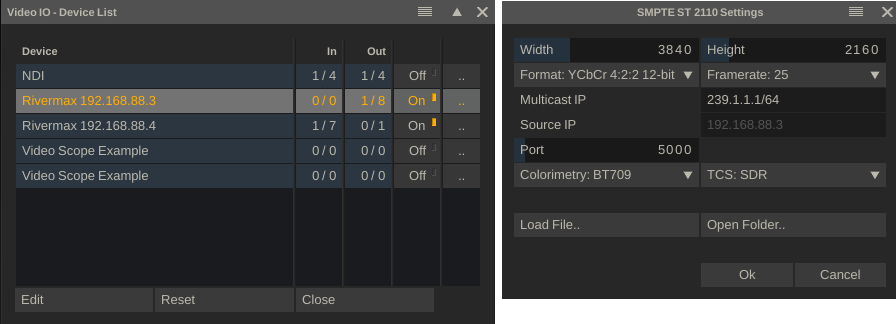
From the device list panel, you open the device settings, where you enable/disable the available channels in the device and designate the channel as output or input. From there you open the SMPTE ST 2110 Settings, where you specify the properties of the media stream: resolution, addressing, timing. You control the content of the so-called Session Definition Protocol (SDP) of the channel. This SDP can also be loaded from file. The Open Folder button opens the folder with all current active SDP files.
The Rivermax Clock Type advanced system setting determines which clock is used with the media:
-
User (default). Use the clock on the network adapter.
-
System. Use the system clock.
-
PTP. Use a PTP network server.
Each network adapter for NVIDIA Rivermax can be tied to a PTP server when available. When selecting the PTP option above, the system will use the timing of the PTP server that is tied to the first network adapter in the system. If for whatever reason you want to use PTP from another network adapter in the system, then use the Rivermax PTP Source IP - advanced system settings, where you specify the source IP of the network adapter to use.