GENERAL
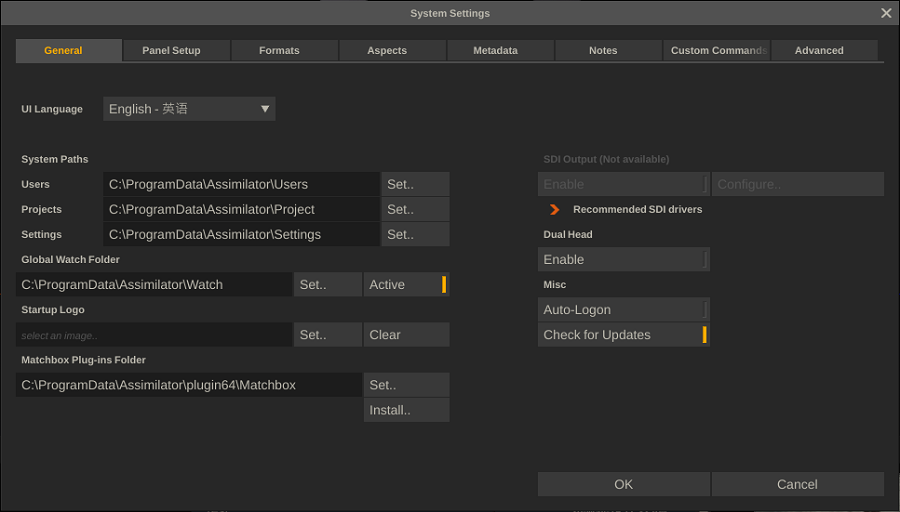
From the Startup screen you can open the System Settings dialog that contains various system-wide configuration information of SCRATCH. The settings on the first General-tab are discussed in this paragraph. The content of all other tabs are discussed in details in Chapter - Customization. The settings that are available in the last Advanced-tab are all explained in the tab itself as well as listed in the Appendix of this manual.
LANGUAGE
As of version v8.4 the SCRATCH User Interface is also available in Chinese. At first time startup SCRATCH determines what language to use by default from the Operating system settings.
SYSTEM FOLDERS
SCRATCH stores all Project databases, User Profiles and created templates and presets in separated folder. You can change this configuration to suit your particular setup. E.g. you can point for the location of these folders to a network shared directory to share projects and user profiles with multiple SCRATCH systems. Note though to share projects the network protocol used should enforce proper file locking otherwise two systems might end up adjusting the same project database, resulting in database corruption and loss of data. Also, SCRATCH does not lock the files in the Users folder when a User Profile is selected. Strict procedures for all users to only select a single User Profile from one system at any one time is recommended.
PROJECT DIRECTORY
Location where SCRATCH stores all projects - one sub-folder per project. Use the Set button to open a SCRATCH Browser and navigate to the desired folder.
USER DIRECTORY
Location where SCRATCH stores all User Profiles - one sub-folder per profile.
SHARED DIRECTORY
Location where you can store various templates and presets to be shared between all User Profiles on a single system, or amongst multiple SCRATCH systems when located on a network drive.
GLOBAL WATCH DIRECTORY
The Global Watch Directory works in conjunction with the SCRATCH XML-script capabilities.
While SCRATCH is running, it is constantly monitoring – or watching – this folder for new files. If a new file with an .xml extension is copied into this folder, SCRATCH opens the file and attempts to process the XML commands that are contained within. To warrant consistency in processing if multiplied files are inserted in the Watch Folder - files are processed in order of their modified-date. The use of XML-script in SCRATCH is covered in more detail in Chapter 10 and Appendix B.
Use the Clear button can be used to remove the Watch folder completely.
START UP LOGO
Here you can select an image file with e.g. your company logo to replace the SCRATCH Logo on the Start screen. Use the Clear button to remove a previous selected image and revert to the normal SCRATCH logo.
MATCHBOX PLUG-INS
Matchbox plug-ins are so called (shader)script-based image effects plug-ins, of which there are quite a few available for free: https://logik-matchbook.org/. Using the Install button you do a install the freely available plug-ins. Alternatively you can use the Set button to point SCRATCH to a folder where you already installed Matchbox plug-ins.
MISC SYSTEM SETTINGS
AUTO-LOGON
With Auto-Logon enabled, the initial Start up Screen is bypassed and SCRATCH enters automatically to the last Project that was used in your previous SCRATCH session.
Tip: To enable the Start-up Screen again, exit a Project and switch to the System Settings Menu; deactivate Auto-Logon. The next time you start SCRATCH you will be presented with the Start-up Screen.
CHECK FOR UPDATES
This option connects to the ASSIMILATE server at startup and checks for news updates, which are displayed on the logon screen.
SDI AND DUAL HEAD SETTINGS
ENABLE AND CONFIGURE
SCRATCH will automatically detect and can use a second monitor or SDI output. This second output will not have the user interface overlaid on it and can be used as a clean feed for projection, client monitoring or output to a tape deck. SCRATCH currently automatically detects and supports the following SDI boards: AJA (KONA 3G or LHi, Kona 4), Bluefish cards, DeckLink, NVIDIA SDI Option card. When one of these cards is detected you can enable SDI with the corresponding Enable button and the Configure button becomes available which in turn opens the SDI settings dialog window. The SDI configuration panel is discussed in more detail later in this paragraph.
Note: Some of the supported SDI cards require SCRATCH to restart after an Enable or Disable. On Windows SCRATCH will restart automatically, on OS X you need to manually restart the application.
DUAL HEAD
Enable or disable the second monitor if available. This option is on by default if SCRATCH detects a second monitor. However, if SDI is enabled this option is no longer available.
CONFIGURE SDI
This dialog panel let’s you configure a number of your SDI Settings.

SIGNAL FORMAT
Select the resolution and framerate of the signal. Note that this will override any signal selected in the SDI card control panel.
DATA FORMAT
This is either RGB or YUV in various SDI specific layouts.
- Note that any 444 format requires a dual-link.
- For 444 the AJA implementation only supports RGB formats.
- When selecting RGB 444 with an AJA card the SDI signal is always full-range and no colorspace matrix can be applied.
COLOR SPACE MATRIX
- SCRATCH always produces RGB values which need to be converted to SDI
- The conversion will be performed to either CCIR, REC709 or RGB
- Scaled means SCRATCH will scale it's RGB values to fit into the Legal SDI rangekona
- Full means SCRATCH will not scale the levels but transfer them 1:1 to the SDI colorspace
The additional H (Headroom) option enables or disables the availability of super black/white on the SDI output signal. Note that Scaled already is in a legal range and can not produce super black/white levels.
SYNC AND FRAME LOCK
For NVIDIA cards only - you can either select to use the internal sync of the card or to work with an external sync device.The Frame-lock can be used to sync across multiple monitors. Please see the NVIDIA documentation for more details on these functions.
SHOW FRAMES DROP
Enabling this option will show an error message in the player each time a frame was dropped on the SDI signal.
APPLY SETTINGS
When using an NVIDIA SDI card SCRATCH will automatically restart after Applying new settings to re-initialize the SDI card. This is not required for the other supported cards.
Note: when using an NVIDIA card a warning may be displayed at the bottom of the panel indicating that the selected signal and any external sync do not correspond. This is an internal NVIDIA driver message.
Note: With the“NO CS matrix” option set, SCRATCH will not explicitly set the colorspace at start up. In that case, the color space that has been set through the SDI card settings panel will be used. However, after selecting “NO CS matrix”, you should first exit SCRATCH and (re)set the custom color space through the SDI card settings panel.
Note: The SDI Output only shows images from the Player. When you are in the Construct, or the Start-up screen, the SDI Output shows a SCRATCH logo screen or a custom logo if the Start-up screen has been customized. See Chapter 10 for details about customizing the Start-up screen.
Tip: The[DUAL YUV 422] option is used for stereoscopic output. The two outputs of the SDI card will be configured to show the left and right sides of the SCRATCH DUAL VIEW. Details on configuring SCRATCH for stereoscopic projects are covered in a separate support article.