GENERAL
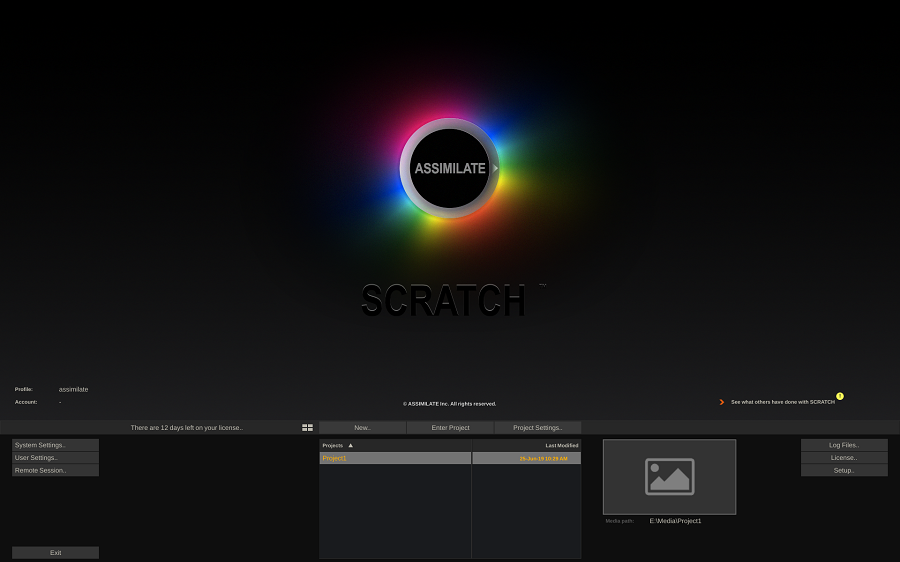
This chapter introduces you to the Start-up Screen in detail, showing you how to create and configure Projects, User profiles and manage SCRATCH system settings. When SCRATCH is launched, the Start-up Screen shows the Assimilate logo & product designation in the top part of the screen - the so called View Port area. The top left corner will contain several links that will open a web page in your default web browser with information on the selected topic.
First Time Startup
When you start SCRATCH the first time the Enhance SCRATCH dialog is shown where you can select to extend the SCRATCH installation and/or watch a quick tour video about SCRATCH.
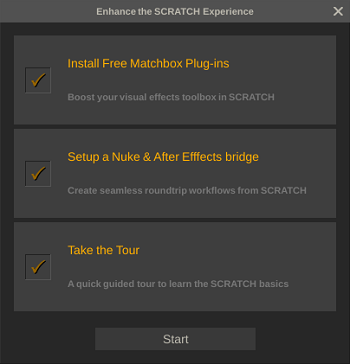
Click any of the options to select/deselect. Press Start to start the setup. Click the close option in the top right corner to skip the options.
- Matchbox Plug-ins. Matchbox plug-ins are (mostly free) effects plug-ins (see https://logik-matchbook.org). This option will automatically download and setup all the plug-ins supported by SCRATCH. You can also do this manually from the System Settings menu which is discussed later in this chapter.
- Setup After Effects and Nuke bridges. Create Custom Commands functions to easily share clips between SCRATCH and Adobe After Effects and/or The Foundry Nuke. For more information on Custom Commands, see chapter - Customizing.
- Take the Tour - show a basic tutorial video of SCRATCH.
Note that you can also start the Enhance SCRATCH dialog from the Setup button in the logon-menu (discussed below).
System Info Overlay
When you click anywhere in the View Port area, an overlay is displayed with system and software version information. This info is also available in the log files maintained by SCRATCH but the overlay is more readily available.
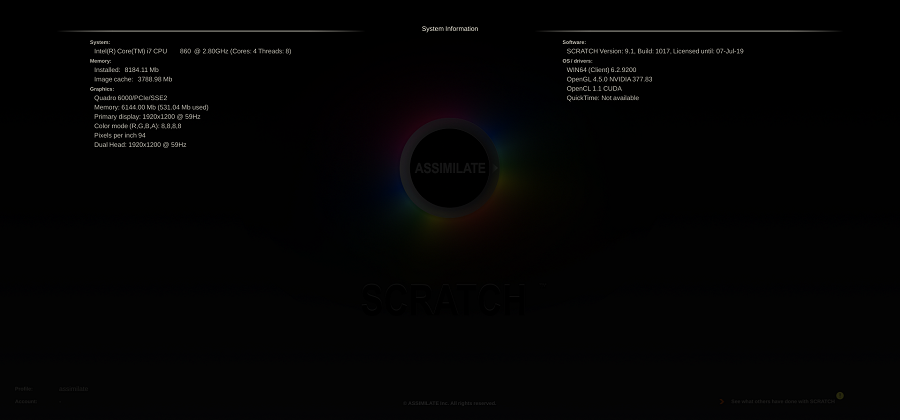
If you click anywhere on the overlay it will be lifted, leaving the normal logo view again.
MENU BAR
Just below the View Port area you find the Main Menu bar.
PROJECT VIEW
 The icon button to the left of the New button toggle the project list between a poster frame view and a project names list.
NEW
Create a new project. This opens the Project Properties dialog, discussed in the next paragraph.
ENTER PROJECT
The middle Enter Project button is available when you have created and selected a project in the Menu area below it. The first time you open SCRATCH this button is grayed out since there are no projects yet. Sometimes, after installing a new version of SCRATCH this button might be labelled Upgrade Project. In that case you first need to upgrade the project database for it to work with the new version. Make sure you always maintain a backup of your project before upgrading your SCRATCH version or project database version. Once SCRATCH has upgraded a project database the normal Enter Project button becomes available again.
PROJECT SETTINGS
This opens the panel to edit the settings for the current selected project. This panel is discussed in the next paragraph.
MENU AREA

PROJECT LIST
In the middle of the menu area is the Project list. Using the icon button on the Menu Bar you can toggle this list between a poster frame list or a project name list with only the poster frame of the selected project showing. In the latter view you can change the sort order of the list by clicking the list header: project name or last modified date.
Tip: The
list of SCRATCH projects can become long; to quickly navigate the list
you can just type the (first characters of the) name of a project
-the project-list will automatically scroll to that correct position and
select the project. Subsequently using the Quick Key: Enter is equivalent to clicking the Enter Project button.
To the right of the project list, the poster frame of the selected
project is displayed. When no poster frame is available for the project a
default placeholder is displayed. You can set a specific poster frame after entering the project. If you do not explicitly set a poster frame, SCRATCH will automatically select one the first time you entered and exited a new project.
Below the poster frame, SCRATCH displays the media path of the project. Each project has a media path. Note however that this does not mean that you cannot load media outside that path into the project. If the project does not have a valid media path or if the media path is inaccessible, SCRATCH will display that in yellow and you can not enter that project before the path has been set in the Project properties dialog or access to the path has been restored.
SYSTEM SETTINGS
Open the System Settings panel with a wide variety of system settings. This panel is discussed in a later paragraph in this chapter.
USER SETTINGS
SCRATCH allows you to create multiple user accounts, each with its own profile / specific settings. The User Settings panel is discussed in a later paragraph in this chapter.
REMOTE SESSION
In a remote session you link multiple SCRATCH systems together. This function is discussed in more detail in Chapter - Collaboration.
EXIT
Clicking the Exit button will close the program.
LOG FILES
The Log Files button, located on the right side of the Menu Bar, allows quick access to the SCRATCH log files. Clicking on this button opens a file browser window to the location of the SCRATCH log files. When engaging with ASSIMILATE's Technical Support or Licensing you might be requested for a log file of your system. This is a quick way to access these logs.
LICENSE
Open the License dialog discussed in the previous chapter
SETUP
Open the first-time-started Setup panel to enhance the SCRATCH setup, as discussed earlier in this paragraph.