GENERAL
This document discusses the Control Surfaces and how to set up each
panel based on what version of SCRATCH you are running. With the release
of SCRATCH version 7 (V7), we implemented a more simplified way of
setting up the Control Surfaces. Set-up scenarios are straightforward.
Each section will cover a specific panel set and either have a link
to an existing V6.1 article or go through the new setup for V7. At the
end of each panel section there will be a link to the needed driver if
necessary.
Note: For any version leading up to V6.1, set-up will remain the same.
Note: For each panel set-up there is an option called "Overwrite Mappings." Read the description from the link. before proceeding. Here.
TANGENT CP-200
SCRATCH V6.1
Use the link below to set up the Tangent CP-200 panels.
http://www.assimilatesupport.com/akb/KnowledgebaseArticle50050.aspx
SCRATCH V7.0
The new version of SCRATCH has a new GUI-based interface that
eliminates the need to copy/paste cs_devices.xml and cs_mappings.xml
files from one folder to another. The new interface can be found in
System Settings / Advanced / Panel Setup tab.
CP-200 / STEPS
- Highlight panel and “Enabled”. Then enter the three-or-four
digit serial number for the panel. This serial number is unique and
shown on each panel display. Don't use the "real" serial number shown on
a sticker or the panel box.
- Repeat the steps for each CP-200 panel then select “Overwrite Mappings”.
- Setting the IP Address of the Computer (see link provided above). Reboot.
- Launch SCRATCH and the BK panel will show “Starting SCRATCH” and the current version used. Done.

TANGENT CP-300 "WAVE"
V6.1 Set-up
Use the link below to set up the Tangent CP-300 panel.
http://www.assimilatesupport.com/akb/KnowledgebaseArticle50087.aspx
V7.0 Set-up instructions
The new interface can be found in System Settings / Advanced / Panel Setup tab.
CP-300 / STEPS
- Highlight the Wave panel and “Enabled”. Select “Overwrite Mappings”. That’s it. Reboot the system just in case.
- Step #2 Launch SCRATCH and the BK panel will show “Starting SCRATCH” and the current version used.

AVID MC COLOR (FORMERLY EUPHONIX)
V6.1 Set-up
Use the link below to setup the MC Color panel.
http://www.assimilatesupport.com/akb/KnowledgebaseArticle50406.aspx
New v.7
The new interface can be found in System Settings / Advanced / Panel Setup tab.
MC COLOR / STEPS
- Navigate to the Avid website to download the latest
Driver (V2.7). Create an account and log in. The link for downloading
the driver can be found below.
- Install the driver, then launch the EuControl panel.
Select the Surface tab and Add MCColor to “My Surfaces”. Then close the
app and launch SCRATCH and navigate to System Settings / Advanced /
Panel Setup.
- Highlight the MC panel and “Enabled”. Select “Overwrite Mappings”. That’s it. Reboot the system just in case.
- Launch SCRATCH, the MC Color will show “Starting Scratch” and the version being used.
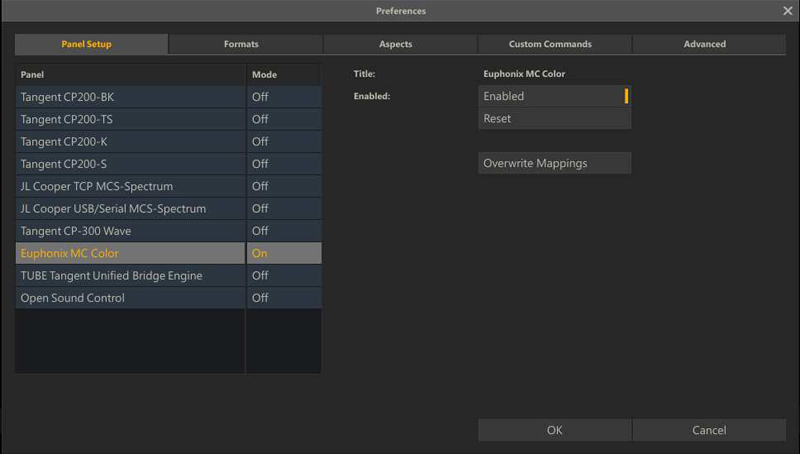
MC color latest driver 2.7
http://euphonix.avid.com/artist/ux/euphonix/my-artist-series.php
TANGENT ELEMENT
- Navigate to the Tangent website and download the Tangent Hub driver. To download the driver, use the link below.
- Install the driver.
- Navigate to C:/Program Files/Assimilate/Settings folder.
Copy/Paste, “Do not move” the cs_devices.xml and cs_mappings_Element.xml
to the C:/ProgramData/Assimilator/Settings folder.
- Only adjust the cs_devices.xml and cs_mappings_Element.xml from
within the C:/ProgramData/Assimilator/Settings folder. Do not adjust the
original files from Assimilate/ Settings.
- Open in Word pad cs_devices.xml and Enable the TUBE Tangent Unified BridgeEngine. Then save the file and your done.
- Launch SCRATCH., The TK panel will show “Starting SCRATCH” and the version being used.
Version 7 Set-up
The new interface can be found in System Settings / Advanced / Panel Setup tab.
ELEMENT / STEPS
- Highlight the TUBE Tangent Unified Bridge Engine panel and
“Enabled”. Select “Overwrite Mappings”. That’s it. Reboot the system
just in case.
- Launch SCRATCH. The TK panel will show “Starting SCRATCH” and the current version being used.
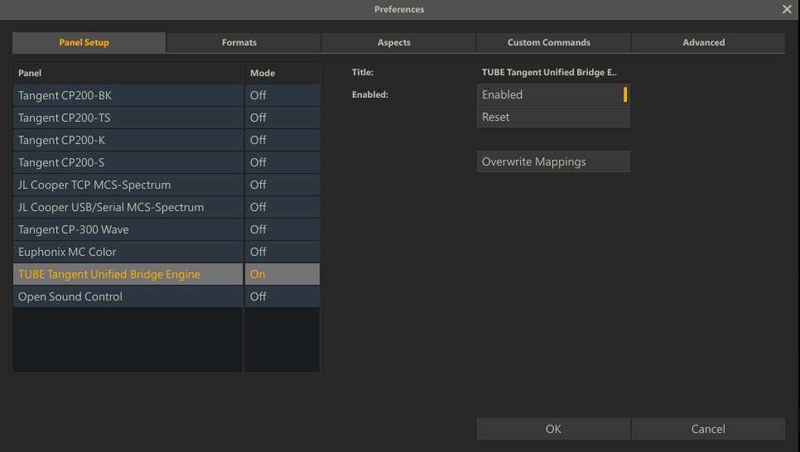
Tangent Hub driver
http://www.tangentdevices.co.uk/support.asp
IMPORTANT NOTE
When
using only part of a Tangent CP200 panel set (i.e. two or three panels
out of four), you need to ENABLE the full set in the cs_devices.xml (on
SCRATCH V6.1) or in the Advanced Settings / Panel Setup (on SCRATCH V7.0) .